
Sub-Accounts
Table of Contents
KuCoin TR Sub-Account Functions
Create and manage sub-accounts, configure different trading strategies, keep funds separate, and mitigate investment risk. Here is some key information to better understand how to create and manage a Sub-Account on KuCoin TR.
1. Account Management
1.1 How to Create a Sub-Account via KuCoin TR Website
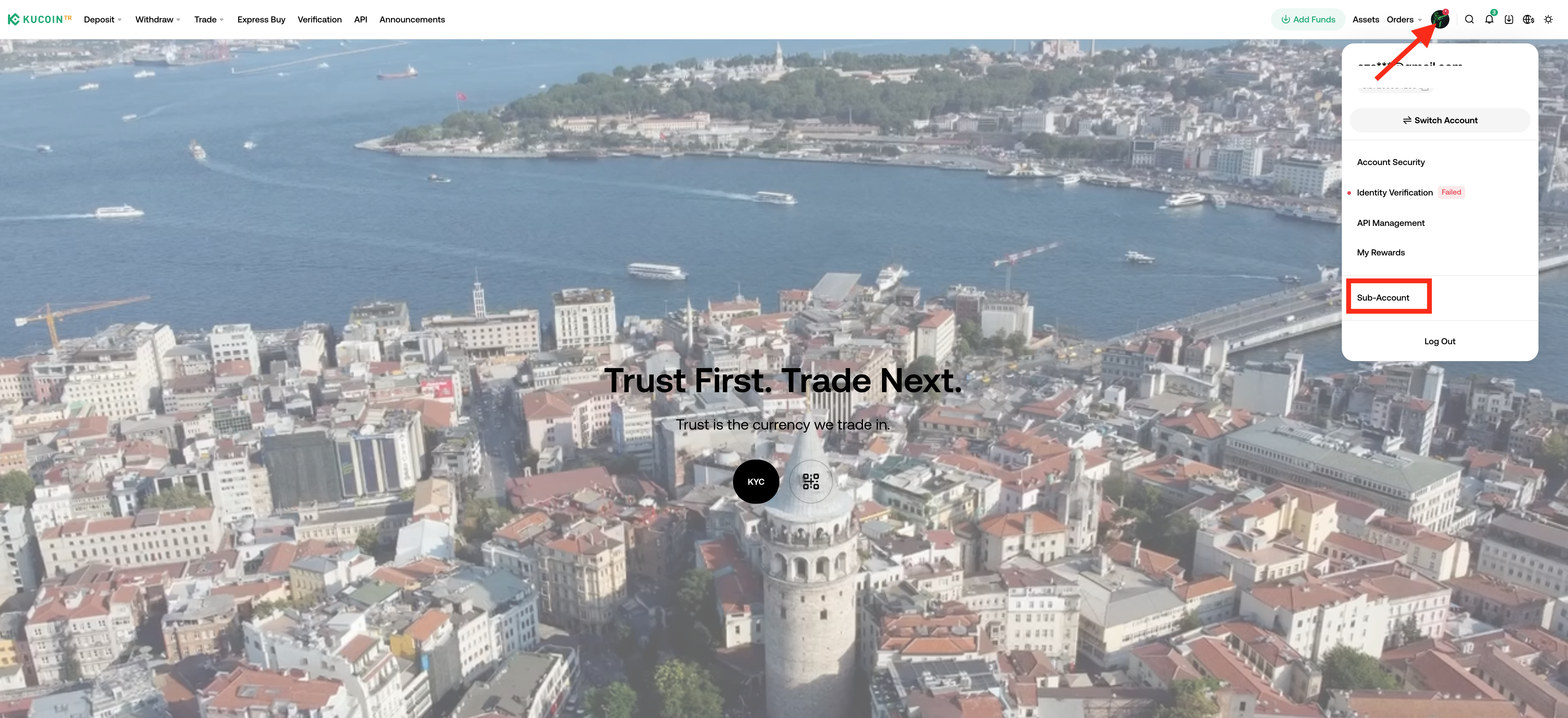
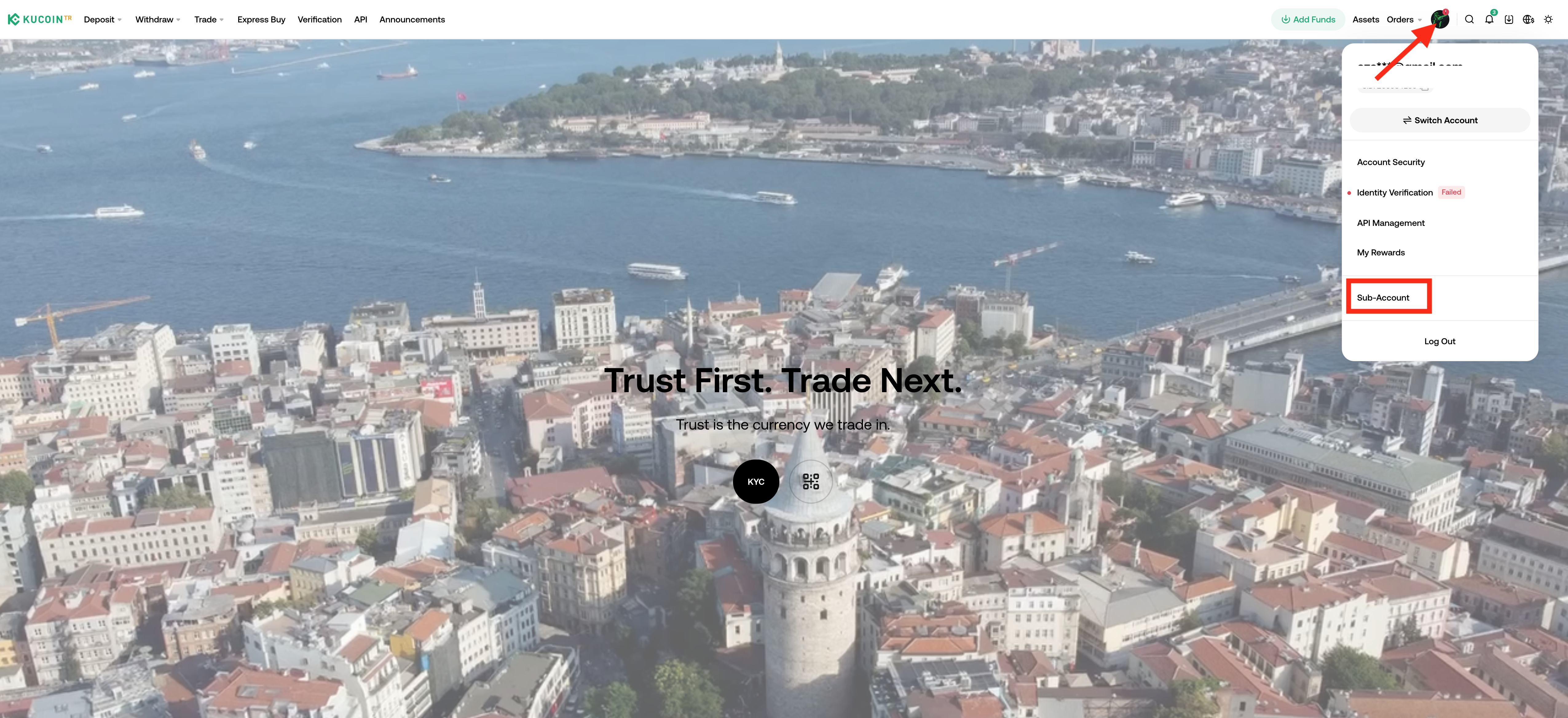
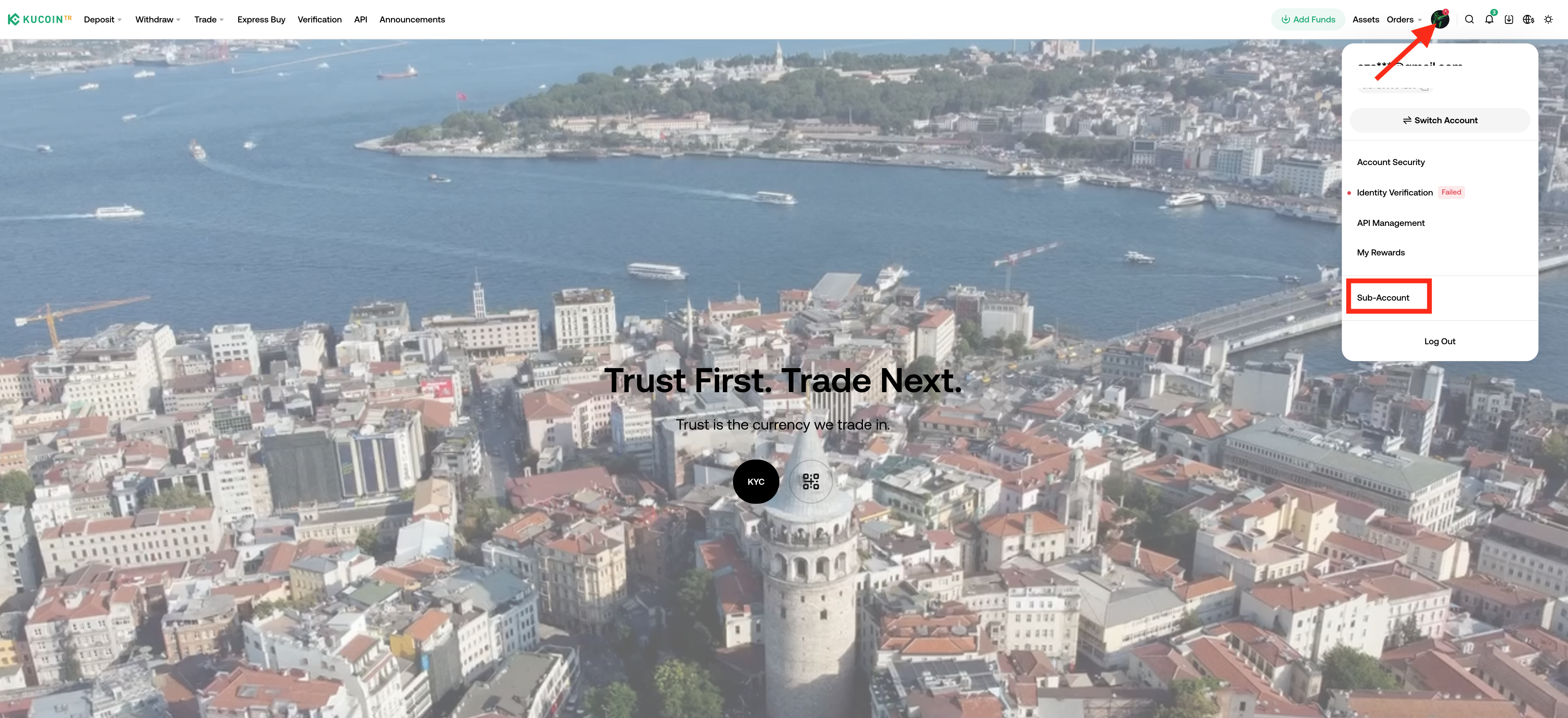
Step 1: Go to KuCoin TR Website, login to your Master Account and access the Sub-Account page via the drop-down menu while hovering your cursor over your profile picture in the top-right corner.
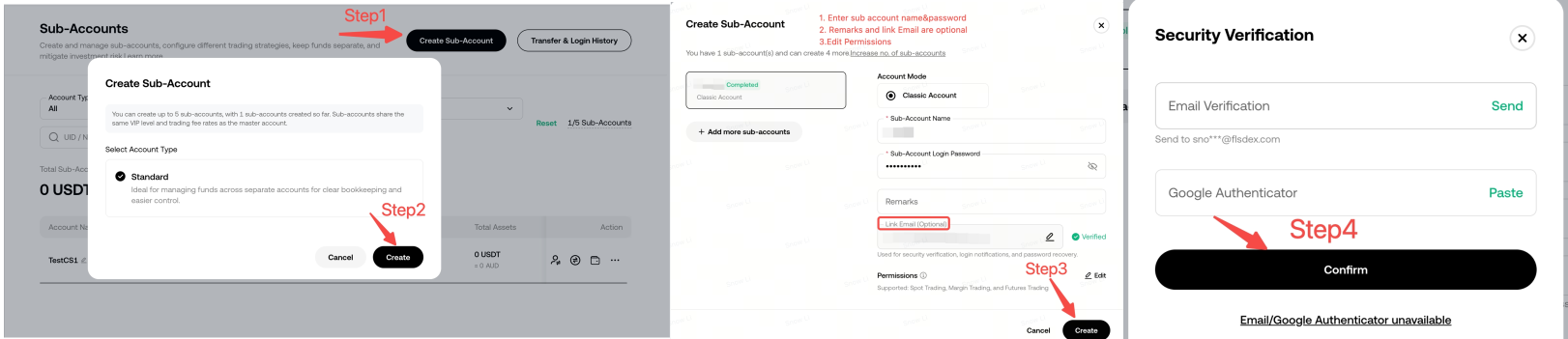
Step 2: Click Create Sub-Account, fill in the name, password, remarks (optional) and edit the Sub-account permissions to proceed. The name of the sub-account name must be unique and cannot be modified once created.
- Standard Sub-Account
Notes:
- Sub-Account Name: 7-24 characters, must be alphabetical or alphanumerical, must not contain only numbers, and must not include any special characters
- Sub-Account Login Password: Must contain 7-32 characters, at least one number and one letter. Cannot contain any spaces.
- Currently supported Sub-account Permissions: Spot Trading.
1.2 Maximum Number of Sub-Accounts
Currently, each KuCoin TR account is limited to 5 sub-accounts, please stay tuned for further updates on how to increase this limit.
1.3 Sub-Account Switch Function
KuCoin TR now offers the convenience of switching between users' various accounts effortlessly using the Account Switch function. Please refer to the details below:
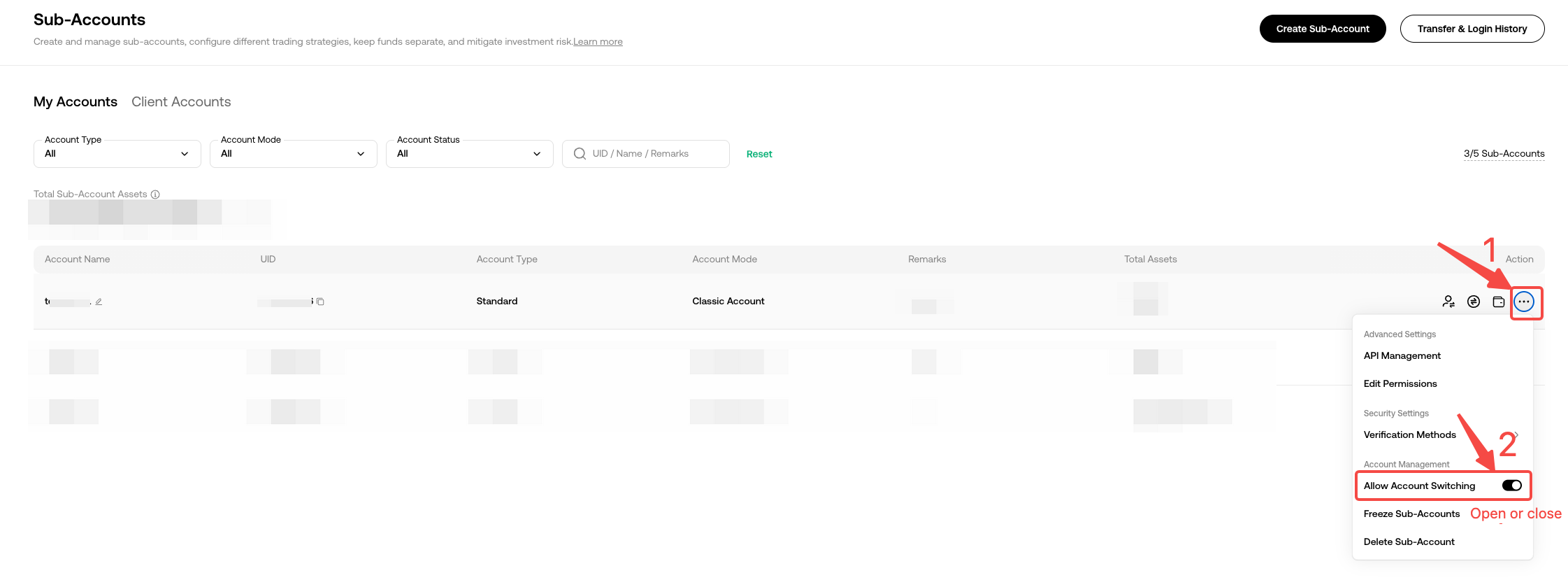
Step 1: Enable/Disable the Account Switching Function
- After logging into your Master Account, navigate to the 'Action' section on the Sub-Account page. If you want to allow a sub-account to switch among sub-accounts under the same Master Account or to switch to the Master Account, enable this function; otherwise, keep it disabled.
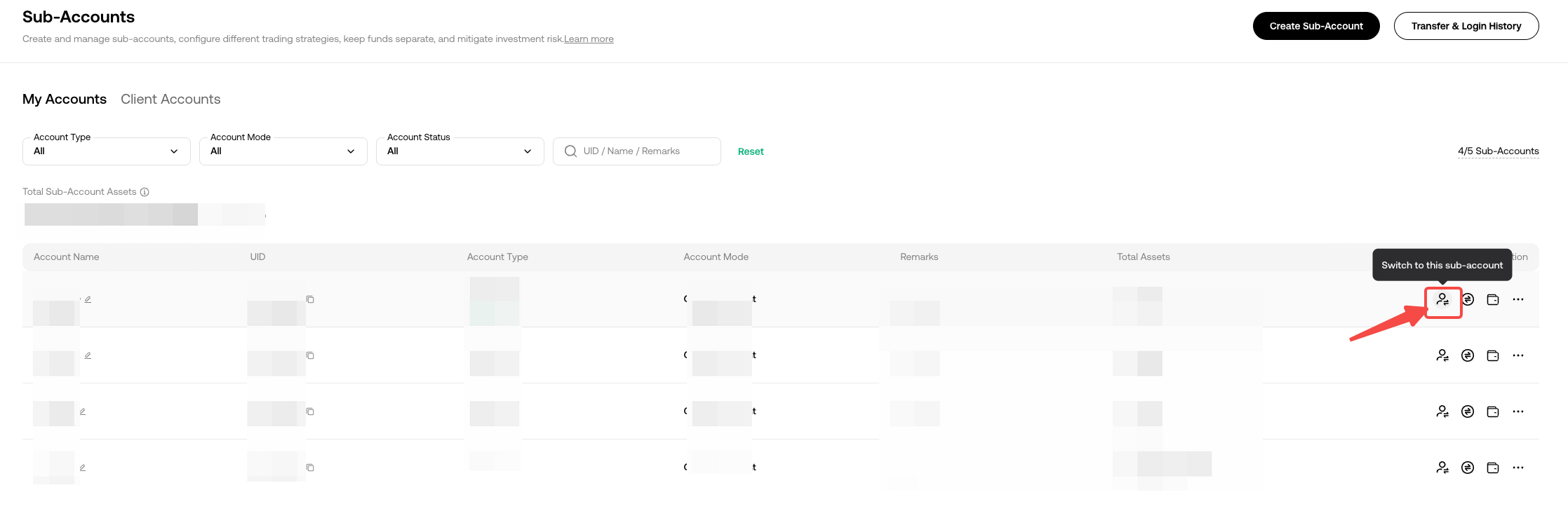
Step 2: Switch Accounts
- While "Allow Account Switching" is enabled, if you would like to switch to the Sub-account from Master Account, you can switch to the account directly.
1.4 Freeze or Delete Sub-Accounts
To delete/freeze your Sub-Accounts, you need to access the Sub-Account page via the drop-down menu while hovering your cursor over your profile picture in the top-right corner.
Navigate to the 'Action' section on the Sub-Accounts page and click "Freeze Sub-Accounts" or "Delete Sub-Accounts".

Notes:
- Once frozen, all orders for the Sub-Account will be canceled.
- Once a Sub-Account is deleted, it cannot be restored, but a frozen Sub-Account can be reactivated. Additionally, only 24 hours after deletion can the linked email address, phone number, or the Sub-account user name be used for another KuCoin TR account.
2. Assets Management
2.1 Master-Sub-Account Transfers
Sub-Accounts are not able to perform any withdrawals. However, after you login into your Master Account, you can transfer funds from Sub-Accounts to your Master Account, from the Master Account to Sub-Accounts, or between Sub-Accounts.
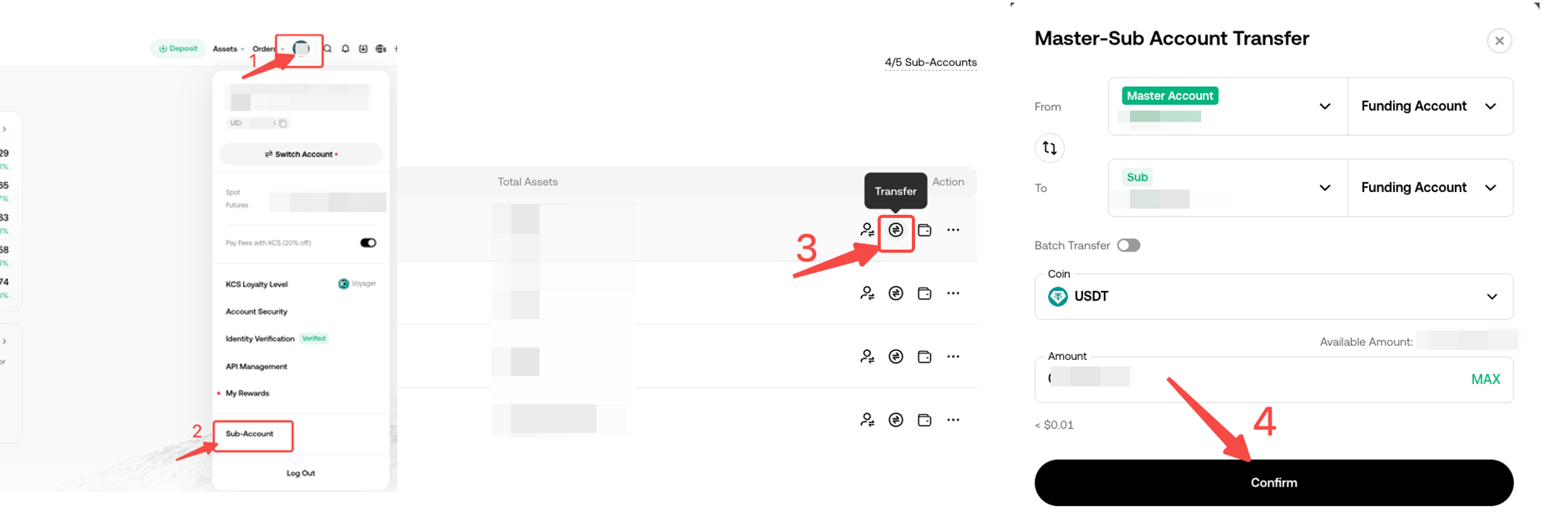
Notes:
- If you login to your Sub-account, you can only transfer funds between accounts (such as between funding and trading accounts), not between sub-accounts or the Master Account.
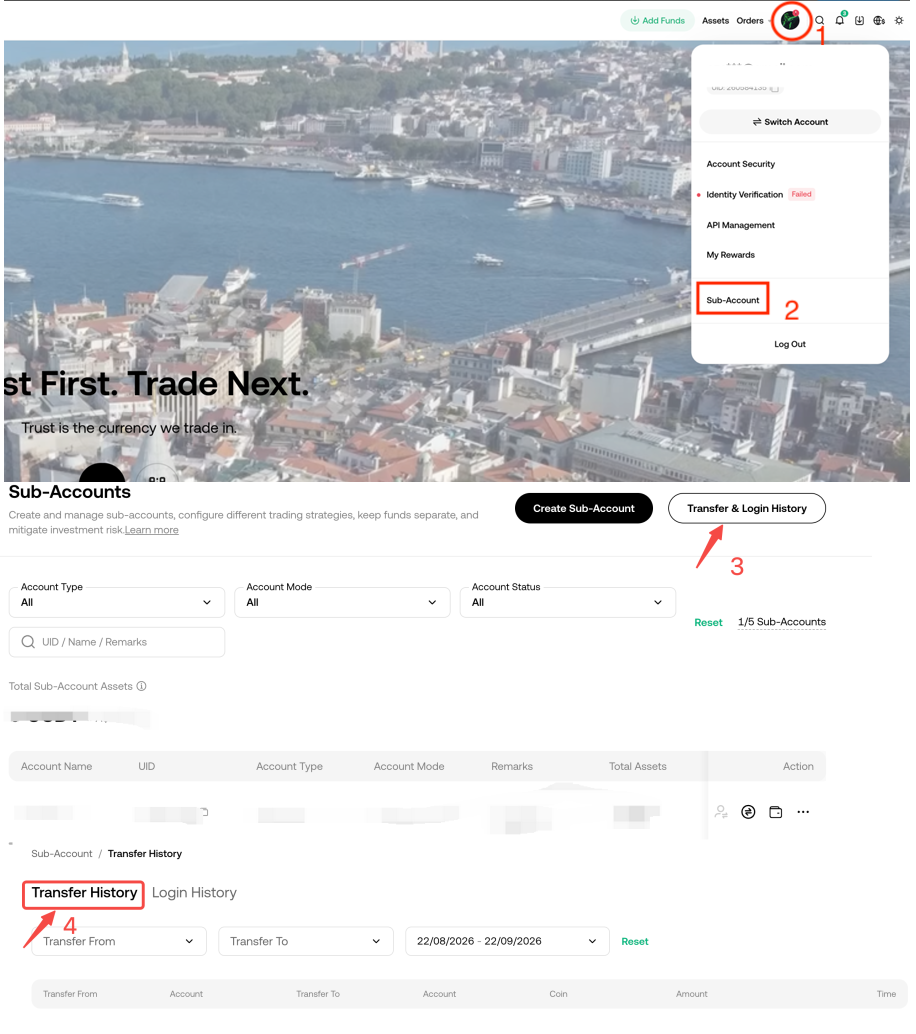
2.2 Check Master-Sub-Account Assets Transfer History
Login to your Master Account and access the Sub-Account page via the drop-down menu while hovering your cursor over your profile picture in the top-right corner. Navigate to the 'Transfer & Login History' section and check the "Transfer History" or "Sub-Accounts Login History".
3. Sub-Account Security Settings
3.1 Link Sub-Accounts Security Settings
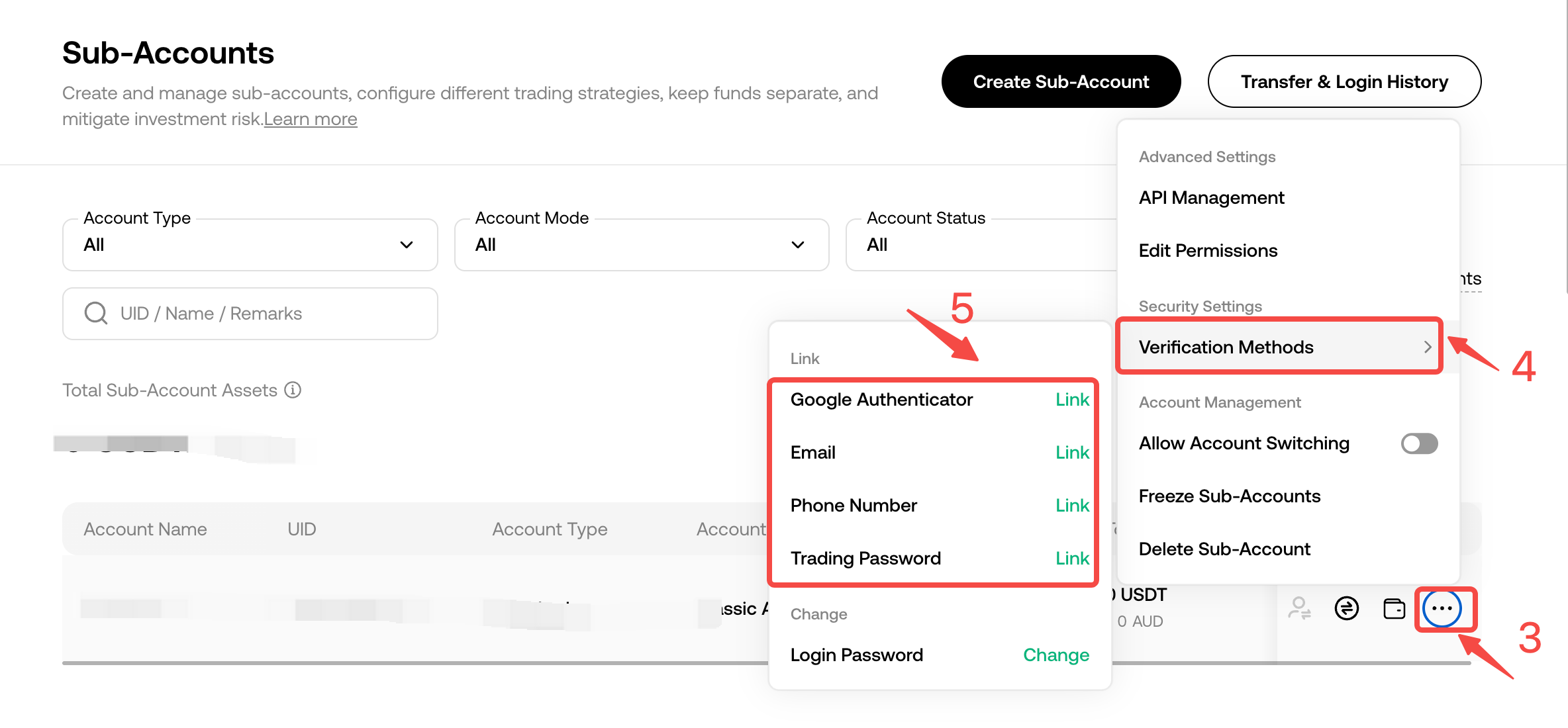
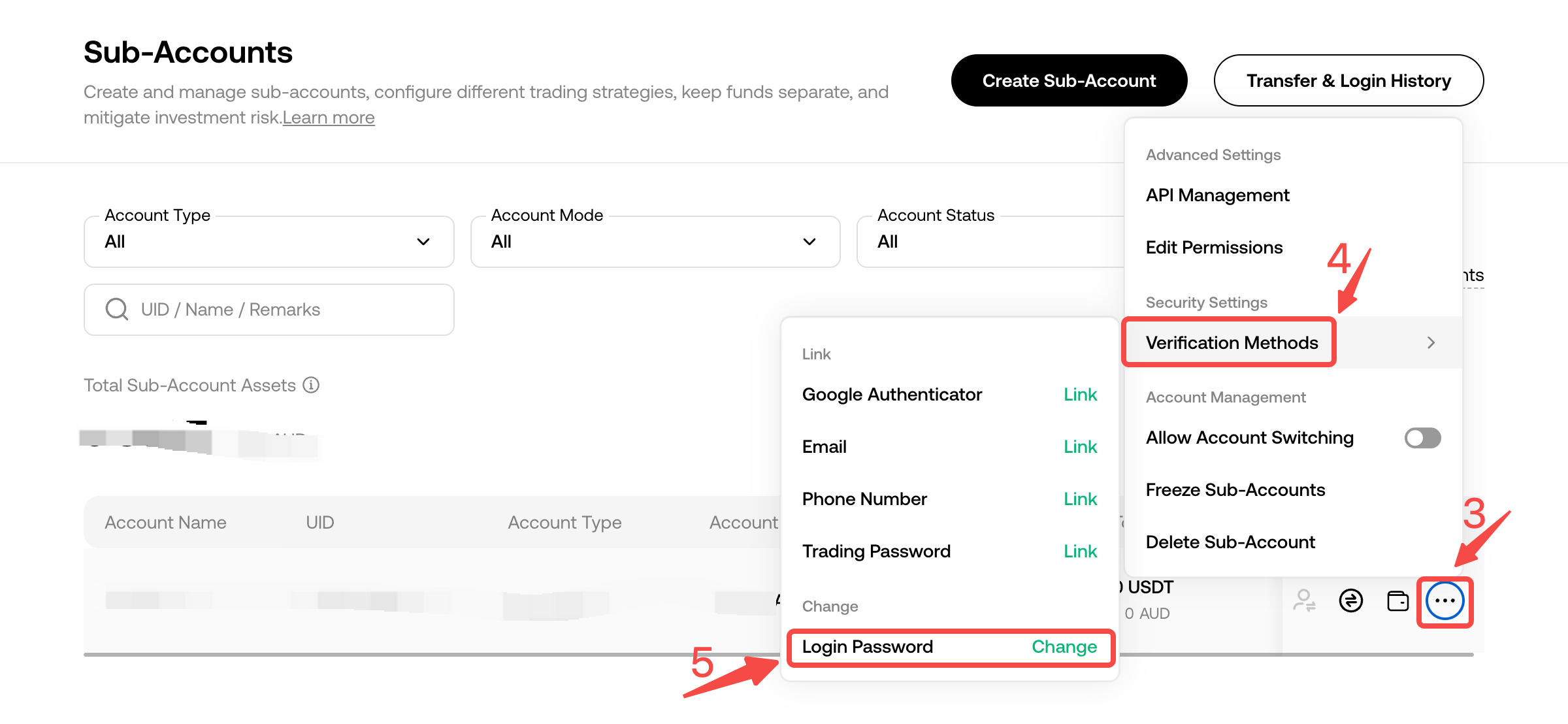
You can manage the Sub-Accounts security settings under the "Action" by clicking the "Verification Methods".
Step 1: Go to KuCoin TR Website, login to your Master Account and access the Sub-Account page via the drop-down menu while hovering your cursor over your profile picture in the top-right corner.
Step 2: Click three dots in the "Action" section and refer to "Verification Methods" to link the Google Authenticator, Email, Phone Number, and Trading Password to your Sub-account directly.
3.2 Change Sub-Accounts Security Settings
You can change the Sub-Accounts security settings under the "Action" by clicking the "Verification Methods".
Step 1: Go to KuCoin TR Website, login to your Master Account and access the Sub-Account page via the drop-down menu while hovering your cursor over your profile picture in the top-right corner.
Step 2: Click three dots in the "Action" section and refer to "Verification Methods" to change the security settings, such as Google Authenticator, Email, Phone Number, Trading Password, or login password of your Sub-Accounts.
We hope this article has been helpful. If you have any other questions, please reach out to our 24/7 customer support via online chat or submit a ticket.