How to Change or Reset Trading Password
Here, we’ll help you on how to change, and reset your trading password.
Table of Contents
1. Changing Your Trading Password
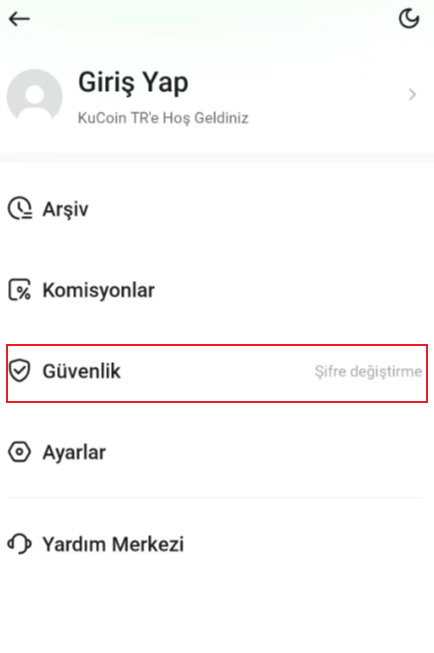
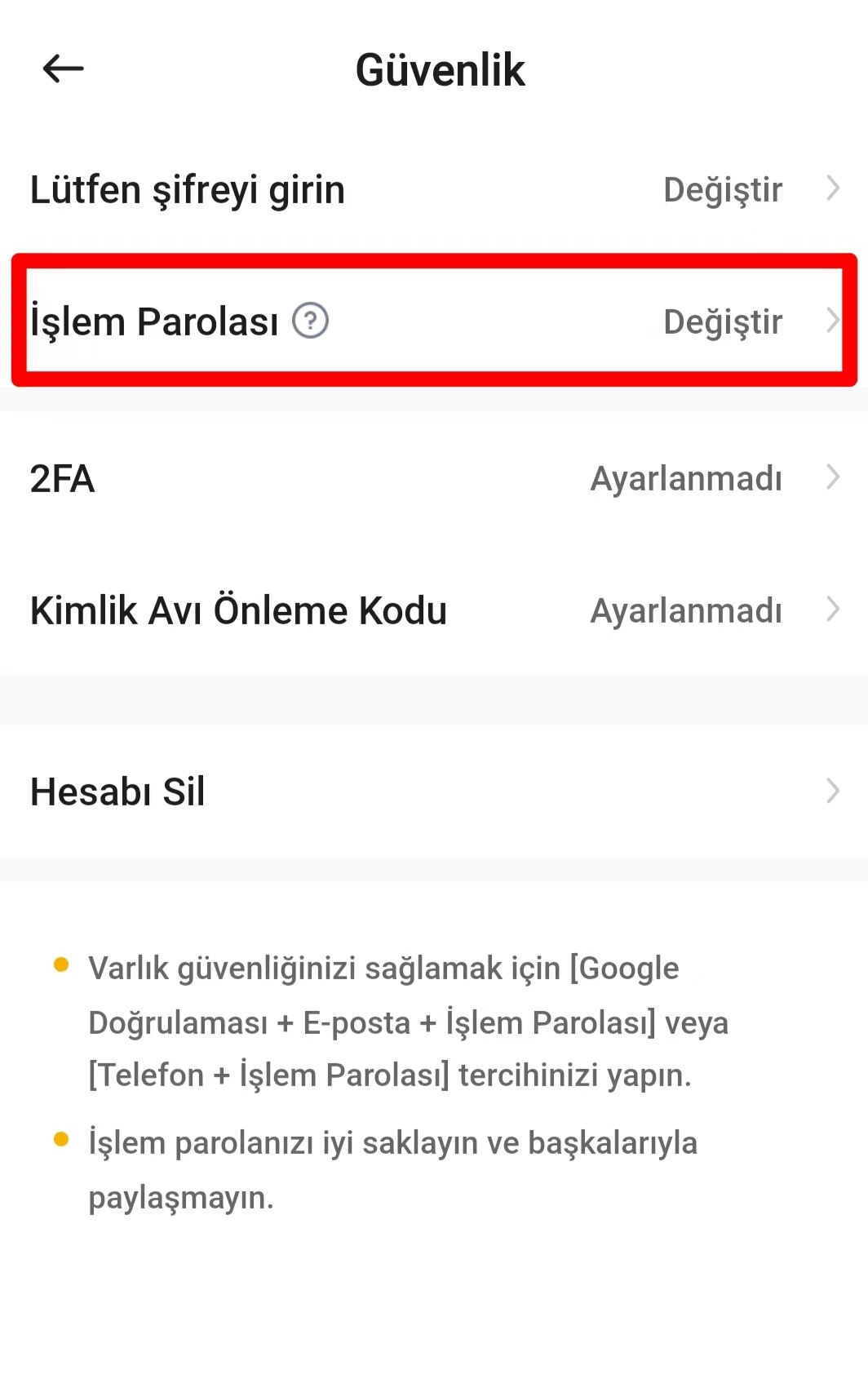
Step 1: In Security page, look for Trading Password. Select Change next to it.
Step 2: Enter your current password, set new password and confirm password, then click Change.
Step 3: Your trading password is changed successfully.
2. Resetting Your Trading Password
Step 1: In Security page, look for Trading Password. Select change next to it.
Step 2: Select Forgot trading password? from the bottom of the page.
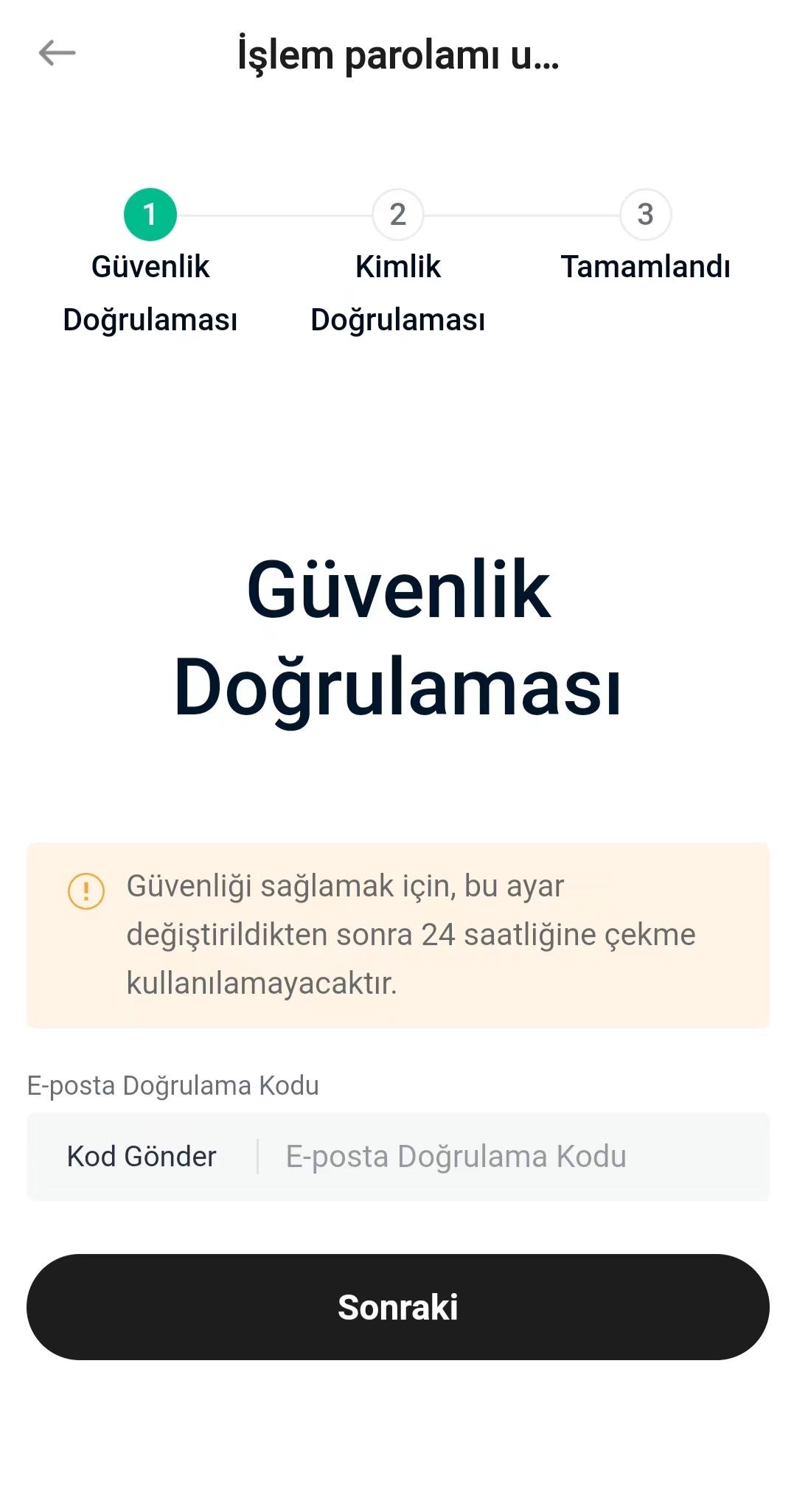
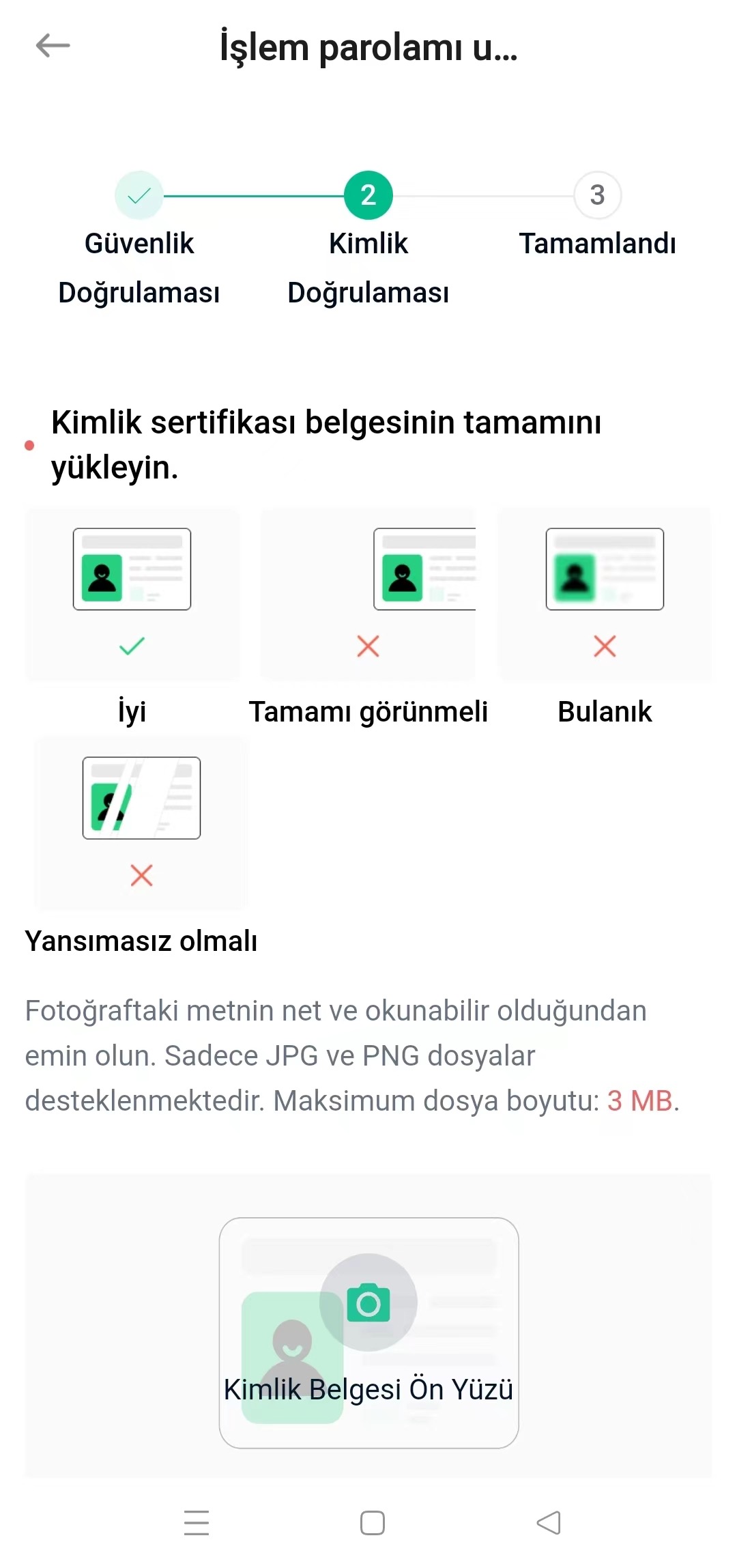
Step 3: Complete the Identity Verification process, following the instructions closely to request a manual password reset. Once you’ve appealed, your request will be processed in approximately 1–3 business days.
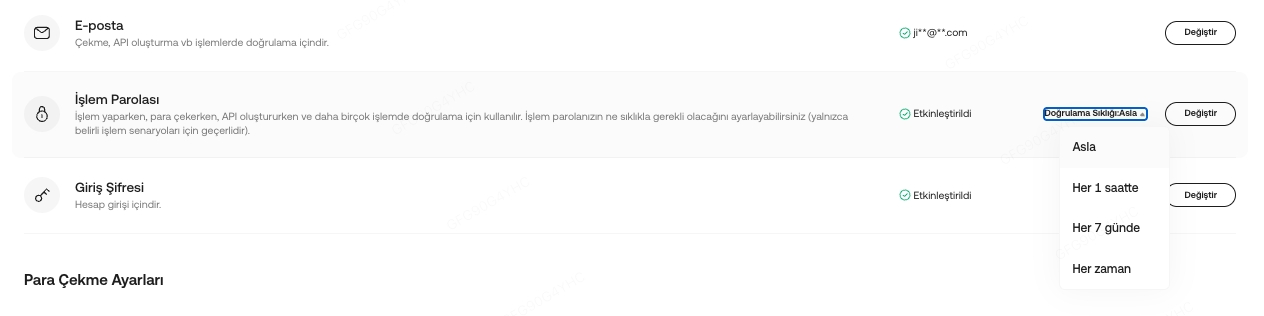
3. Set Verification Frequency
To ensure a seamless trading experience, you may set the verification frequency once set the trading password.
- Never: (By default), if you have never set the verification frequency
- 1 hour
- 7 days
- Every time
Note:
a. When completing Identity Verification, upload the required photos and follow the instructions on the page closely, or your request may be rejected.
b. Withdrawals are disabled for 24 hours after changing your trading password to protect your assets.
c. The password reset is effective immediately upon completion.
d. If you’ve forgotten your trading password and also lost 2FA access to your account, you may also refer to this article: What Are Security Settings and How to Reset Them?
We hope this article has been helpful. If you have any other questions, please contact customer support directly, or submit a ticket for assistance.